
Kodi is an open-source movie platform designed to give you access to many other streaming services. It can help users watch their favorite shows or movies from different platforms without downloading them individually. Imagine logging into your Kodi app and having the freedom to choose either Amazon Prime Video or Netflix for a complete movie night experience. Indeed, such leisure time would be nothing short of memorable.

However, the Kodi app does not have these streaming platforms preinstalled, and you need to follow specific steps to get them. We will use Netflix in our illustrations for this article, and users can follow our simple steps. Earlier, you only needed to install a Netflix add-on on Kodi, but things have changed, and this procedure no longer works. So, you’d have to follow the steps outlined below to get your Netflix on Kodi. But before you begin, buy a Netflix plan, as you won’t be able to enjoy viewing without subscribing. Let’s quickly dive into the steps.
How to Use Netflix on Kodi – Quick Guide
- Download Kodi from its official website.
- Accept Kodi’s terms and conditions and Select a location for installation files.
- Install C++ packages if prompted for smoother functionality.
- Download the Netflix add-on as a ZIP file.
- In Kodi, go to the top left box icon > select “Install from ZIP file” to extract the contents.
- Click “Install from Repository,” navigate to the add-on folder, and select the Netflix file to start the installation.
- Open the Netflix add-on in Kodi and log in with your Netflix account.
- Start streaming your favorite content on Kodi.
Editor’s Tip: The Best VPN Services to Use
What is Kodi?
Kodi is an open-source media player and entertainment hub that allows users to stream content from local and online sources. Initially developed as Xbox Media Center (XBMC) in 2002, Kodi has evolved into a powerful platform supporting various media formats and streaming options. It can be installed on multiple operating systems, including Windows, macOS, Linux, Android, and iOS. It is compatible with various devices, from desktop computers to smart TVs and Raspberry Pi.
What sets Kodi apart is its extensive library of add-ons, which enables users to access a vast array of content, including live TV, movies, music, and even third-party streaming services like Netflix. These add-ons are developed by the Kodi community and external contributors, offering endless customization options. While Kodi doesn’t create content, it is a gateway to thousands of media sources, providing users with a highly customizable entertainment experience.
How to Use Netflix on Kodi
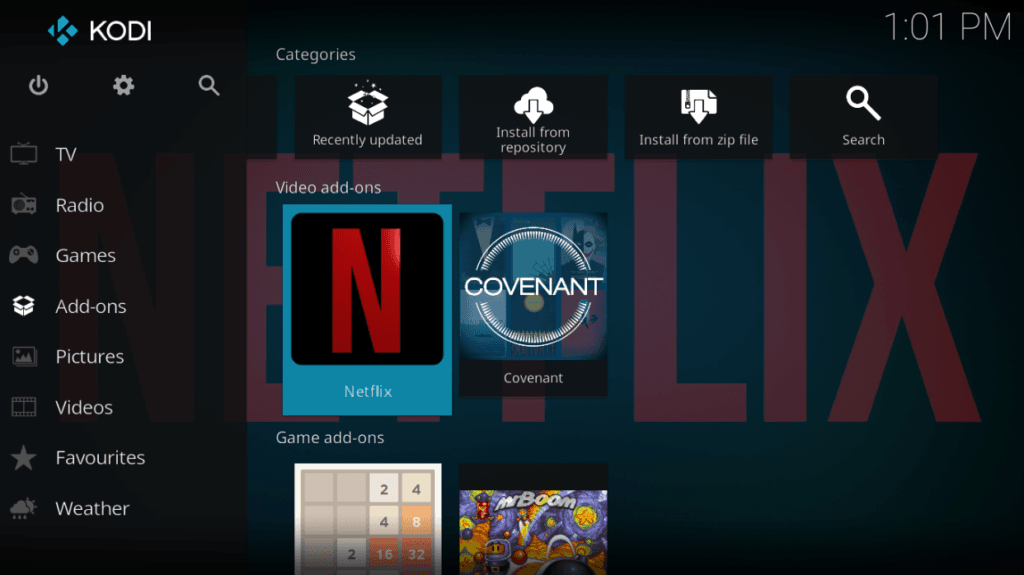
Using Netflix on Kodi is an excellent way to enhance your streaming experience by combining Netflix’s vast library with Kodi’s versatile media player. Install the Kodi software on your preferred device and download the CastagnaIT Netflix Add-on from the official repository or GitHub. Once installed, you’ll need to log in using your Netflix credentials. The add-on organizes content into categories, making browsing and playing your favorite movies and shows easy. Ensure you have Widevine DRM installed for smooth playback, as Netflix content requires this for decryption.
To improve your experience, update the Kodi software and the Netflix add-on to access the latest features and avoid bugs. You can customize the interface and create personalized profiles like the Netflix app. Kodi also supports add-ons like Trakt to sync your watch history across devices. Remember, using a VPN is a good idea for enhanced privacy and accessing geo-restricted content while streaming Netflix on Kodi.
Regional Restrictions Associated with Netflix Movies and Shows
After logging into your Netflix account, you do not yet have complete access to all of the content on Kodi. This is due to geographical restrictions on various TV series and motion pictures. This is how it functions. Streaming services such as Netflix act as an intermediary between you and the author or owner of a show. Netflix must obtain authorization from the show’s owner before streaming a particular episode to you. For instance, AMC’s approval and distribution rights are required if Netflix wishes to release the television series “The 100” in the United Kingdom.
Usually, one can purchase distribution rights for each nation. This implies that various platforms, such as Amazon and Netflix Prime, may hold the rights to the same show but in separate global territories. In the case of The 100, Amazon Prime is the legitimate distributor in the UK, even if Netflix owns the rights to the show in many other countries.
As one might anticipate, obtaining rights to distribute any work may be costly. Hence, a streaming service such as Netflix will not release a show in a country if it believes its population is too small to warrant the show’s distribution rights. Similarly, Netflix may desire exclusive rights to a particular show in a given nation but cannot purchase them because another platform already owns them.
Why Does Netflix Content Library Differ Across Regions?
Due to distribution rights, Netflix’s collection may appear somewhat different depending on your location. For example, The 100 is not available on Netflix UK. Also, the movie Supernatural won’t be accessible if you’re in the Netherlands. There will be no Avatar: The Last Airbender screening for Netflix users in Romania. Hence, Netflix’s most well-liked and best edition is generally thought to be Netflix USA.
The fact that different nations don’t have equal access to Netflix may seem unjust, but don’t worry. It doesn’t necessarily mean you can’t watch your favorite movies and shows on Netflix because they’re unavailable in your nation. With a VPN installed, you can easily stream any Netflix content on any device without restrictions. Moreover, VPNs are very much functional on Kodi, and there are free ones you can use if you’re on a lean budget.
Why Bother Using Netflix on Kodi?
Using Netflix on Kodi offers a unique blend of flexibility and convenience, especially for users who love a unified entertainment hub. Kodi’s open-source platform allows you to integrate multiple streaming services, including Netflix, in one place so that you can switch seamlessly between your personal media library and Netflix’s extensive catalog. This setup is handy for customizing your streaming experience with Kodi’s add-ons and themes, which can enhance accessibility and personalization.
Additionally, Kodi supports a wide range of devices, some of which might not have native Netflix apps available. You can access Netflix content even on unconventional devices or older systems by using Netflix on Kodi. Plus, for advanced users, Kodi’s capabilities—such as Trakt integration for tracking watch history or using VPNs for privacy—add extra functionality layers beyond the standard Netflix app.
The Use Cases of a VPN on Kodi
You can access the global web as if you were in a foreign country by using a VPN to protect your internet connection and change your virtual location. This implies you’ll be able to use different Kodi versions of Netflix. You won’t run out of entertainment options because there will be a more comprehensive selection of films and television shows.
So basically, Kodi VPN setup can be done in three different ways:
- Utilizing a VPN Application: Install a VPN application on your device, launch it, and connect to a server in your desired location. Once connected, open Kodi to enjoy the content of your new virtual location. This is the most straightforward method, ideal for beginners.
- Through Your Router: Configure the VPN directly on your Wi-Fi router. This setup secures all devices connected to your network, including those running Kodi. While it requires more technical know-how, it’s a one-time setup that ensures VPN protection for all household devices.
- Via a Kodi Add-On: Some VPN providers offer Kodi-specific add-ons. Install the add-on directly in Kodi, log in with your VPN credentials, and activate it. This method integrates VPN functionality into Kodi, offering convenience without switching between apps.
How to Use Via Kodi Add-on
These steps have been proven to work, and when followed carefully, you can gain access without hassle:
- Select a VPN service provider and register. Please verify that the software on the VPN of your choice is compatible with the device you want to install it on. If you’re unsure about selecting a VPN, we suggest NordVPN.
- Examine the official add-ons for Kodi.
- Choose the VPN service provider. If Kodi doesn’t already offer an add-on for your preferred VPN, you can install Zomboided, which enables you to add any VPN to Kodi.
- Put the add-on in place.
- Launch the add-on VPN.
- After selecting “Configuring your VPN,” provide your login information.
- Press the “Activate” button.
Since you’re now accessing several Netflix libraries using your Netflix add-on, you can use your VPN on Kodi. Doing so will ensure that all your internet traffic via Kodi is secured and encrypted to avoid geo-blocking, data theft, and other threats.
To activate or turn off your private connection, open the extension you downloaded (Zomboided or the VPN’s native add-on) and select a server from the list.
The Best VPNServices – Detailed List
1. NordVPN: A Cheaper Alternative for Streaming on Kodi
Our #1 recommendation for a VPN to access Kodi from anywhere is NordVPN. Also, it offers comparably as many options as its competitors in the provision of nearly 2,000 servers in several locations in the US. These servers can circumvent Kodi’s geographical limitations and stream content from Netflix, Sling TV, and DirecTV, all set up to offer the best possible experience.
This service provides all-in-one internet safety. In addition to the optional anti-malware and ad-blocking features, knowledgeable users can select which traffic is always encrypted by utilizing the application-specific kill switch.
With its no-logs policy, 256-bit AES encryption, and DNS leak protection, NordVPN protects you and your data. Its live chat is accessible 24/7 to address any issues users may have. It offers user-friendly apps using Mac OS, Windows, Android, or iOS. Some network routers and Linux systems can be used, but they must be manually configured.
Pros
Cons
2. ExpressVPN: Kodi’s Most Recommended VPN
On average, ExpressVPN, as a brand, has over 3000 servers in 105 countries. These countries are distributed among the top 5 continents of the world, so there is always room for users to switch without limitations.
The unblocking feature is next on ExpressVPN’s hierarchy of features. Users can watch, stream, and listen to any content they want, regardless of whether censors are placed on it. Also, the service can be used on the go, and your IP address wouldn’t have to change. This enables anonymous browsing, and unrestricted streaming is guaranteed for users on streaming sites.
Regarding device compatibility, ExpressVPN functions on all devices, not minding their operating systems. So, you can easily find ExpressVPN apps on Android, Windows, iOS, Mac, Linux, PS4/PS5, routers and smart TVs. Customer support is top-notch for all ExpressVPN users. Responses to queries are carried out 24/7 with setup or troubleshooting request options varying from emails to live chat.
In addition, security is one section of ExpressVPN’s pride. The service has a slogan revolving around the fact that it remains the most trusted VPN brand. This influences the number of upgrades its security systems have undergone, ranging from split tunnelling to a kill switch. Also included are a private DNS, AES-256 encryption, no logs policy, ads blocker, and its protocol, Lightway.
Pros
Cons
How to Choose the Best VPN for Kodi?
Selecting the right VPN for Kodi is crucial to enhance your streaming experience. Here are some key factors to consider:
Wrapping Up
Instead of having multiple streaming platforms on your device, open-source platforms like Kodi are a great solution. They allow you to gather as many as you want in one place. You can access them all through Kodi, whether Amazon Prime, Netflix, Hulu, or any other streaming platform.
It’s easy to use and lets you stream movies from any platform you like by installing their add-ons. It doesn’t matter what device you’re using; Android, iOS, Windows, or Mac are all Kodi-compatible. So, if you are a Netflix lover and would like to stream it on Kodi, the above steps can guide you. You can also check our guides on streaming Netflix and other platforms without being held back by geo-restrictions.
Frequently Asked Questions
Anyone can follow the simple steps to stream Netflix or any other viewing site. First, install the Kodi app and download a Netflix extension. Install the add-on from the zip file section, log into your Netflix account, ensure you are subscribed, and start enjoying your viewing time.
ExpressVPN is the most recommended VPN option based on features and compatibility. It includes speed, an extensive network of servers, and security. However, VPNs like NordVPN are people’s choice based on purchase cost.
You can stream Netflix on Kodi without a VPN just by downloading its add-on from recommended sites online. However, most regions may not have access to some movies without a VPN.
It accepts plugins from diverse streaming platforms, such as Netflix and Amazon. These plugins allow users to access shows, movies, and other media released on these platforms.
No, Kodi is free and 100% accessible. It is an open-source theatre that can be customized to suit and accommodate other streaming platforms. It has many community members and can function on various operating systems and devices.